RoboTask Is a Toolkit, Not a Single Screwdriver
Over twenty-plus years of building RoboTask — an automation program for Windows — we've read the same story in user emails again and again. It always starts the same way: "All I needed was..."
All you needed was to rename a couple hundred files — so you download a renaming utility. A month later you need to push backups to a server every night — so you go hunting for an FTP scheduler. Another month, and you need to email a report — enter tool number three, some script off a forum. The score: three tasks, three different programs. Each with its own interface, its own quirks, and its own author who may well have abandoned the project last year.
And then comes the day when you need to chain those tasks together: rename the files, upload them to the server, and send the report — as one sequence, overnight, without you in the room. That's when you discover your three utilities don't even know each other exists.
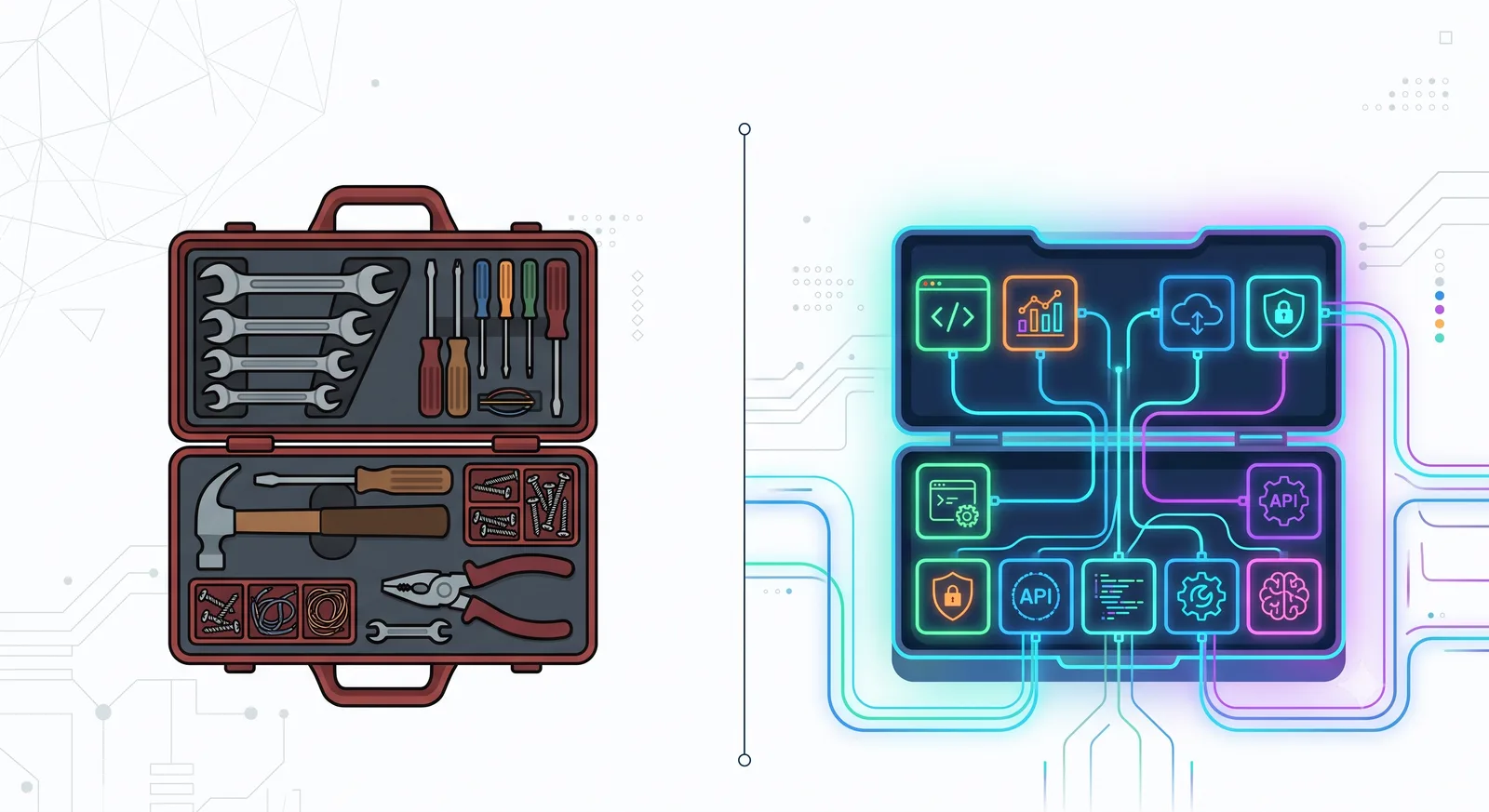
It's like buying a screwdriver, then adding pliers, then a hammer — and at some point realizing what you actually needed from the start was a proper toolbox. One that already holds everything you might need tomorrow, including tools you haven't even thought about yet.
Why the Articles Online Teach You to Collect a Zoo
Search for "automate Windows tasks" and you'll get a dozen listicles along the lines of "7 free programs for every occasion." Inside, the predictable lineup: a file utility, a converter, a mouse clicker, a text expander. A separate program for every little itch.
The advice isn't exactly bad — each of those programs honestly does its one small job. The problem is different: articles like these teach you to collect screwdrivers, not to solve real, multi-step problems. Not one utility on the list can hand its result to the next. The busywork doesn't go anywhere — you've just promoted yourself to manual conductor of an orchestra of unrelated software.
Macro Recorder vs. Automation Software: Why Recorded Clicks Are Blind
The trickiest category of all deserves its own section: macro recorders. The pitch is seductive — hit "record," click around, and the software replays it all for you. For one-off mechanical chores, that's genuinely a fine approach.
But recorded clicks have one inherent flaw: they're blind. A recorder has no idea what's on the screen — it just pokes at fixed coordinates. Window opened a second late? Drifted to another monitor? A system notification popped up? That's it — your macro is now clicking into the void. And you can't tell a recording, "if the file already exists, skip it." No conditions, no logic — just hard-coded clicks.
Real automation software is built differently. It doesn't deal in cursor coordinates; it deals in actions with meaning: "copy these files," "check the mail," "call this API." Each action understands what it's doing, so they chain together naturally — the output of one step becomes the input of the next. Now you get conditions ("if there are no files, stop"), loops, variables. That's no longer an imitation of your hand movements; it's a script that stands on its own.
The bottom line: a macro recorder replaces your hands; automation replaces your head. Hands miss all the time; a head accounts for circumstances.
That said, you don't have to give up the macro recorder entirely. It's a useful tool in its own right, and RoboTask has one built in: your recorded clicks and keystrokes become part of a larger task. The difference is that here, the recording doesn't hang in a vacuum — you can wrap it in logical conditions, drop it into a chain, and fire it from a trigger. The screwdriver lives in the same box and works alongside the rest of the tools.
What's Inside the Toolbox — Using RoboTask as the Example
So what does that "box" look like in practice? RoboTask ships with more than 300 ready-made actions: files and folders, FTP/SFTP, email, web requests and REST APIs, databases, window management, the clipboard — the full catalog is here. You assemble a task from them in a visual editor, like building blocks: no code required.
The second key ingredient is triggers. A task doesn't have to run on a timer — it can react to events: a new file lands in a folder — process it; an email arrives with an attachment — download it. The system stops waiting for your commands and starts watching for things on its own.
And for those who live in the console, you can run Python, JavaScript, or PowerShell code right inside a task. It's not a choice between "blocks or code" — it's blocks, one of which happens to be your script.
Oh, and all of this runs in the background: RoboTask can run as a Windows system service. Your tasks keep executing even when nobody is logged into the machine at all.
How One Toolbox Beats a Dozen Utilities
- Connectivity. Rename → upload → email the report. One smooth chain instead of three separate programs and hand-carrying data between them.
- One learning curve. Master the editor's logic once, and every new task is built from familiar pieces. With a zoo of utilities, every new tool means learning yet another interface.
- One point of trust. Settings, configuration backups, updates — everything in one place, not smeared across seven programs from seven different developers.
- Room to grow. Today you need a simple two-step script; a year from now, a complex overnight scenario with branching and error handling. The tool stays the same — no retraining required.
How to Tell It's Time to Move from Screwdriver to Toolbox
Honest answer: not everyone needs this. If you drive one nail a year, just buy a screwdriver (or, fine, a hammer). One-off task, one-off utility — that's perfectly normal.
But the signs that you've outgrown single-purpose tools usually look like this:
- the same routine chore comes back every day or every week;
- you regularly carry results from one program to another by hand;
- three or four "small but handy" utilities have accumulated on your desktop;
- the thought keeps surfacing: "this really should just happen by itself, at night, without me."
If at least two of those sound familiar — the busywork is only going to keep piling up from here. Time to look at a full toolkit.
You Can Try It for Free — and It's Not a Trial
A common question: "How much does it cost to try living with automation?" Nothing. RoboTask has a free license for personal, non-commercial use. And it's not a 30-day trial — it's a genuinely perpetual version: you get the standard set of actions, all the triggers, and the task debugger.
The only limit is up to 5 tasks of 50 steps each. For home routines, that's plenty and then some: you can set up a backup, a downloads-folder cleanup, a couple of overnight scripts — and still have room to spare.
And every paid RoboTask license is perpetual, too. You buy a version once, and it's yours forever — no subscription.
The Alternative: When All Your Automation Is Files and Clouds
Sometimes a full toolbox genuinely isn't what you need, because there's only one job on the list: files. Scheduled backups, folder sync, shuttling data between your local drive and the cloud.
For those cases we have a dedicated, specialized tool — SyncThemAll. It's a ready-made "file compartment" with no extra machinery. Connect the popular cloud services (Google Drive, Dropbox, OneDrive, S3) and set up your copying in a couple of minutes. Perpetual license here too, and there's a free version as well.
RoboTask is for when you need to automate everything under the sun. SyncThemAll is for when it's only about files. Pick the tool that fits the job — not the one that looks more sophisticated.
Busywork doesn't dissolve on its own — accumulating is the only thing it knows how to do. The only question is who shovels it: you, by hand, or a script in the background. Twenty years of experience tell us that people who assemble their working "toolbox" once never go back to doing routine by hand.
Build your own toolkit → try RoboTask for free