This action combines pages from a list of PDF documents into one output PDF. Each source entry can contribute its entire document or a selected page range. Source entries are processed from top to bottom, so their order determines the order of pages in the result.
The list must contain at least one entry. The same source file can appear more than once, with the same or different page selections.
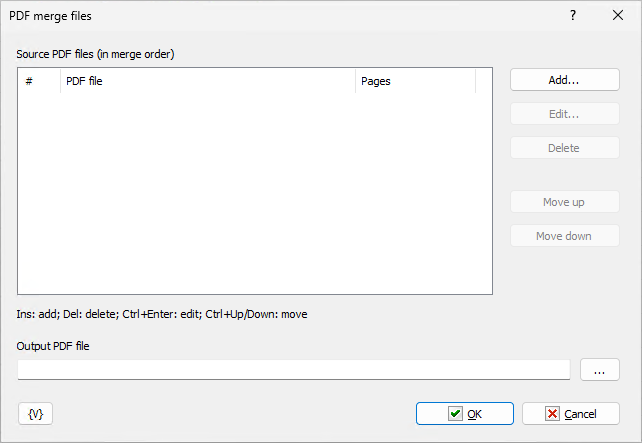
Source PDF files (in merge order)
Ordered list of source entries. Each entry contains a file path and a page selection.
Output PDF file
Path to the merged PDF document. Required. Use a .pdf extension. The output path must differ from every source PDF path.
When adding or editing a source entry, the separate editor provides these settings:
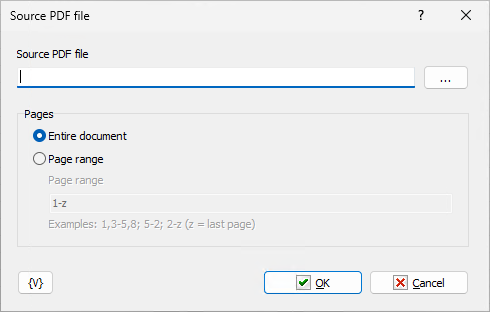
Source PDF file
Path to the PDF document contributing pages. Required. Supports RoboTask variables.
Entire document
Include all pages from this source in their original order. Selected by default.
Page range
Include only the specified selection. Uses the same syntax as PDF extract pages, including commas, reverse ranges, repeated pages, and z for the last page. Default: 1-z. Supports RoboTask variables.
Page range expressions are interpreted separately for each source entry. For example, z refers to the last page of that entry's PDF document.
Use Add to create an entry, Edit to change the selected entry, and Delete to remove it. Double-clicking an entry also opens its editor. Use Move up and Move down to change the merge order. The same commands are available from the list's context menu.
The following shortcuts are available while the source list has focus:
Shortcut |
Command |
Insert |
Add a source entry. |
Delete |
Delete the selected entry. |
Ctrl+Enter |
Edit the selected entry. |
Ctrl+Up |
Move the selected entry up. |
Ctrl+Down |
Move the selected entry down. |
The action creates a new document from the selected pages. Document-level information such as source bookmarks and metadata is not combined into the result.
Example: assemble a document package
Add these source entries in this order:
Order |
Source PDF file |
Page selection |
1 |
C:\Documents\Cover.pdf |
Entire document |
2 |
C:\Documents\Report.pdf |
2-z |
3 |
C:\Documents\Appendix.pdf |
1,3-5 |
Set Output PDF file to C:\Output\Package.pdf.
The merged document contains all pages of Cover.pdf, followed by pages 2 through the end of Report.pdf, followed by pages 1, 3, 4, and 5 of Appendix.pdf. Change the list order to change the order of these sections in the output.
 Related Topics