This action copies selected PDF pages into a new PDF document or saves each selected page as an individual PDF file. You can select consecutive pages, individual pages, reverse ranges, or combinations of these. The order of the selection is preserved.
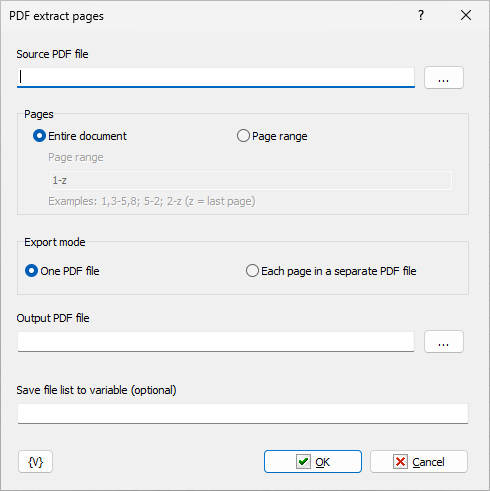
Source PDF file
Path to the PDF document from which to copy pages. Required.
Entire document
Select all pages in their original order. Selected by default.
Page range
Select pages using the expression described below. Required when Page range is selected. Default: 1-z.
Export mode:
•One PDF file - Place all selected pages in one output PDF document. Selected by default.
•Each page in a separate PDF file - Create one PDF document for each selected page.
Output PDF file
Output file path for One PDF file mode. Required; must have a .pdf extension.
Output file name mask
Output path and file name pattern for separate-page mode. Required; must have a .pdf extension. See File naming below.
Save file list to variable (optional)
Variable receiving the full paths of the output PDF files, one per line. In One PDF file mode, the list contains a single path. Leave empty if the list is not needed.
Page range syntax
Expression |
Pages selected |
3 |
Page 3. |
2-5 |
Pages 2, 3, 4, and 5. |
1,3-5,8 |
Pages 1, 3, 4, 5, and 8, in that order. |
5-2 |
Pages 5, 4, 3, and 2, in reverse order. |
2-z |
Page 2 through the last page. |
z |
The last page. |
1,1,2 |
Page 1 twice, followed by page 2. |
Use commas between selections and a hyphen between range boundaries. z means the last page. Spaces are allowed and are removed before processing. Page numbers must refer to pages that exist in the source document. Repeated pages remain in the selection.
File naming
In One PDF file mode, the action uses the output file name exactly as specified after variable expansion.
In Each page in a separate PDF file mode, the file name may contain one %d placeholder. It represents the position in the selected sequence, starting at 1, rather than the original page number. For example, C:\Output\page-%d.pdf produces page-1.pdf, page-2.pdf, and so on. For larger selections, the utility may pad numbers with leading zeros.
If the file name has no %d, a numbered suffix is inserted before the extension: page.pdf becomes page-1.pdf, page-2.pdf, and so on. The placeholder belongs in the file name, not in the folder path. Only one %d is allowed, and other percent signs in the separate-page file name are not supported. RoboTask variables are expanded before the file name pattern is processed.
Example: save selected pages separately
Parameter |
Value |
Source PDF file |
C:\Documents\Report.pdf |
Pages |
Page range |
Page range |
3,1,5 |
Export mode |
Each page in a separate PDF file |
Output file name mask |
C:\Output\page-%d.pdf |
Save file list to variable |
ExtractedPages |
The result is:
Output file |
Source page |
C:\Output\page-1.pdf |
3 |
C:\Output\page-2.pdf |
1 |
C:\Output\page-3.pdf |
5 |
The ExtractedPages variable contains these full paths in selection order. To put the same selection into a single PDF, choose One PDF file and specify an output such as C:\Output\SelectedPages.pdf. Its pages will appear in the order 3, 1, 5.
 Related Topics