Is OneDrive a Backup?
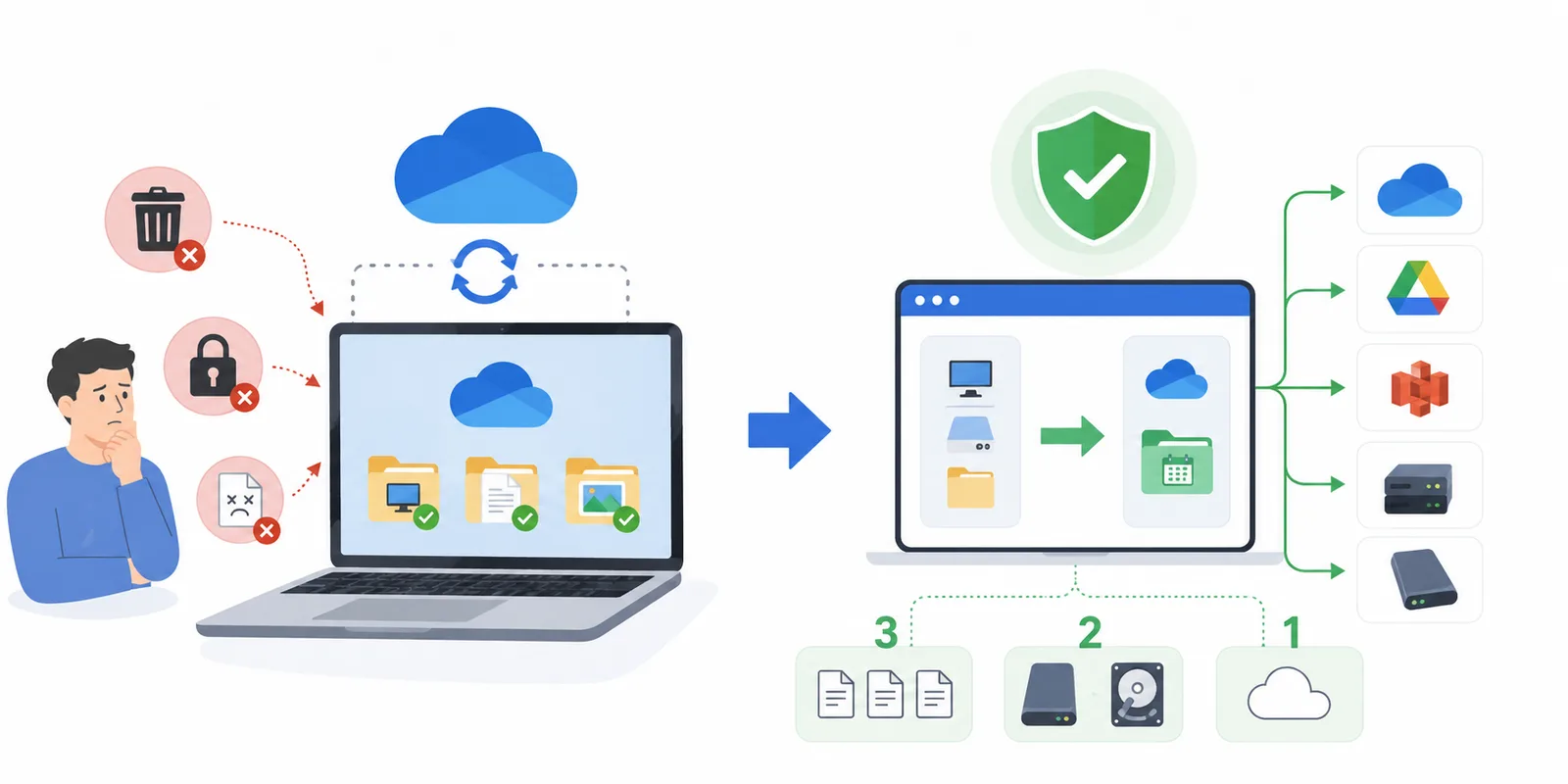
Windows keeps offering to "protect your files" through OneDrive. You click "OK" and breathe easy: your files are in the cloud, so you can sleep soundly.
The problem is that OneDrive is sync, not a backup. And that false sense of security is the most dangerous part of the whole story. You think you're protected, you relax — and then lose your data in a single click. Below, I'll show you where the catch hides and how backups should actually be done.
"But Windows offered to protect my files itself"
Microsoft pushes OneDrive aggressively. Full-screen banners, an orange dot on your Start menu avatar, system notifications... There's no "No, thanks" button — usually just "Start backup" or "Remind me later." And if you keep refusing long enough, Windows sometimes just goes ahead and turns it all on by itself.
They call it "Backup." That very word is what confuses everyone. But under the hood, it's just plain sync. Security folks don't mince words: many say outright that the system behaves like malware, holding your folders hostage under the guise of care.
You probably didn't choose this
Behind that "protection" hides a feature called Known Folder Move. It quietly hijacks your Desktop, Documents, and Pictures folders and moves them into OneDrive. Often, this happens during the initial Windows setup. And in recent Office versions, auto-saving documents to the cloud is on by default. You end up trapped in sync without even suspecting it.
It's a familiar scene: two "Documents" folders (one empty local, one in the cloud), endless confusion, and panic over "where did everything go." And if you simply turn sync off, your files won't come back to your computer on their own — you'll have to drag them back manually.
What is the main danger of a mirror
Sync works like a mirror. Any action on your computer is instantly reflected in the cloud. With everything that implies:
- you deleted an important report by accident — it's gone everywhere;
- you got hit by ransomware — OneDrive helpfully shipped the encrypted versions to the server;
- a file got corrupted — the broken copy is instantly synced to the cloud.
Yes, there's a recycle bin. But it holds deleted files for 30 to 93 days, and then wipes everything for good.
"But there's version history and ransomware protection!"
Here, someone will object: paid Microsoft 365 has a feature called Files Restore — you can roll your entire OneDrive back to a date up to 30 days ago. That's genuinely great during a virus attack. But let's look honestly at the limits:
- A 30-day window. Noticed the problem on day 32? That's it — your files are toast.
- The rollback only works if you (or Microsoft's algorithms) spotted the trouble in time.
- Version history isn't kept for every file format.
- All of it eats up your storage quota. Delete a couple of heavy videos, or let a database rewrite itself often, and the old life-saving versions drop out of history well ahead of schedule — simply because the cloud ran out of room.
Version history is a fine cushion against saving over the wrong document, but it's not a backup. A real backup sits separately and doesn't depend on the whims of a cloud quota.
Not everything gets saved — only three folders
Another overlooked point: if your drive dies, OneDrive saves only your Desktop, Documents, and Pictures. Your D: drive, your project folders, archives, or source code — they're not in the cloud at all.
You can't point OneDrive at an arbitrary folder. For it to sync, you have to physically move it inside the OneDrive folder. So the illusion that "my computer is protected" really just means "three folders are protected." Everything else you lose along with the hardware.
Where sync is genuinely good, and where it's helpless
I'll be fair: sync isn't evil. If your drive dies or your laptop gets stolen, those three folders download from the cloud to a new device just fine. When it comes to hardware failure, it really is a lifesaver.
But sync is utterly helpless when the problem is with the data itself. A glitch, an accidental deletion, or — worse — someone getting access to your PC. They delete everything on the drive, and it obediently syncs.
The formula is simple: sync protects against losing your device, not against losing your data.
How to take back control
Don't let Windows decide for you. The principle of a real backup is simple: a copy of what matters goes into a separate folder, not a live mirror. It's isolated — whatever happens to the original, the archive stays intact.
You can write scripts or copy files by hand, but automating it is much more reliable. A tool like SyncThemAll quietly does it in the background: you just point out which folders to grab (including that D: drive OneDrive ignores), where to put them, and how often.
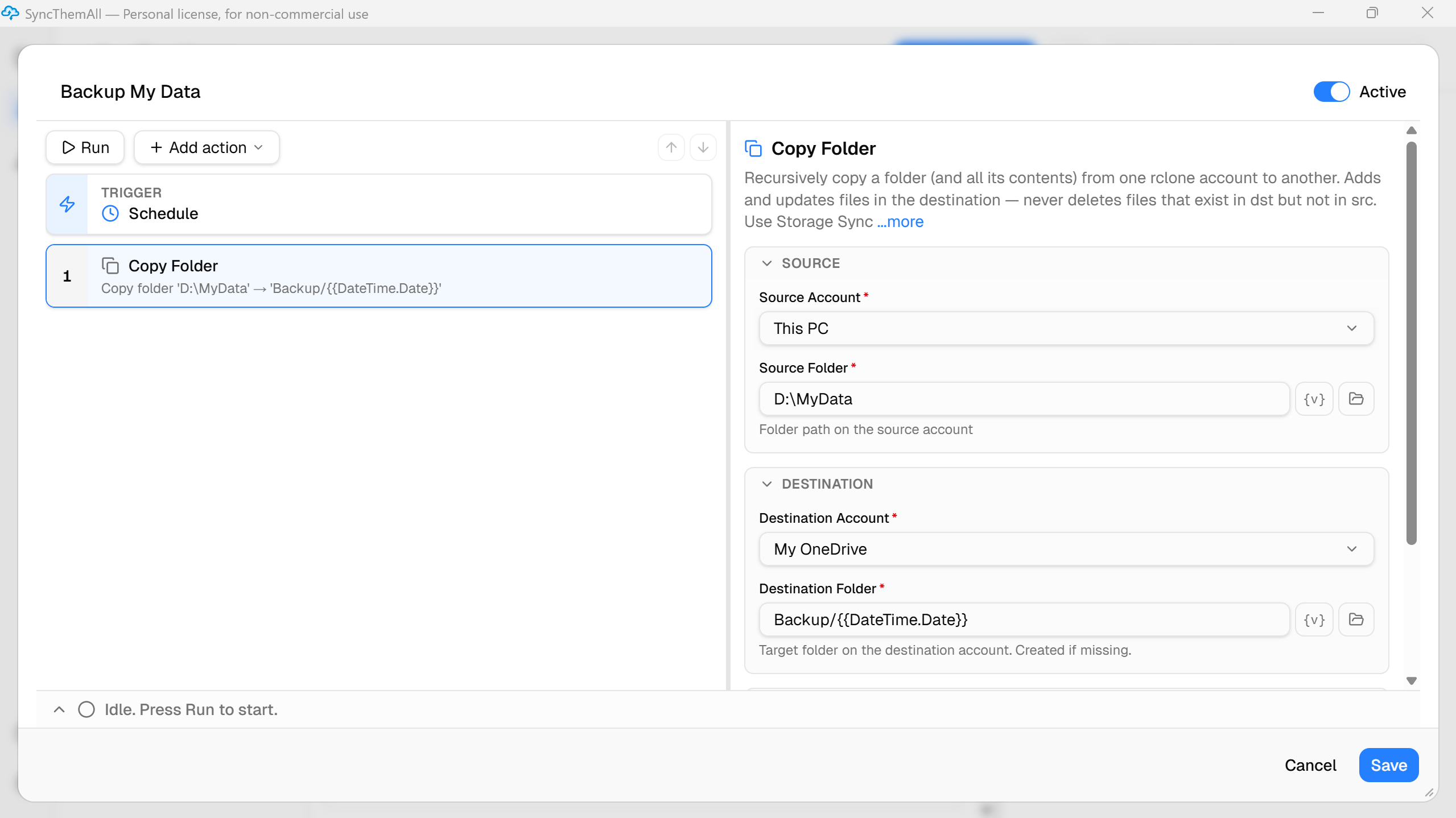
Want versions of your files for different dates (the perfect protection against ransomware)? Just drop copies into folders named with the date. SyncThemAll has a {v} button for this — it fills the current date right into the path (e.g., Backup/{{DateTime.Date}}/).
A fair warning: every dated folder is a full snapshot of your files. Left unchecked, they'll eat up all your disk space over time. So, there are two paths. First: take dated snapshots less often (say, once a week) and manually delete old ones now and then. Second: set up copying into one permanent folder. In that case, SyncThemAll moves only the changed files — which saves a ton of bandwidth and time if you don't need version history.
And if you want smart automatic rotation (along the lines of "keep the last 7 days, delete the rest automatically"), that's what RoboTask is for — SyncThemAll's big brother, equipped with full logic and conditions.
You don't have to drop OneDrive, by the way — let it work as one link in the chain. You're just adding a real backup on top of it.
Don't lock yourself into Microsoft's ecosystem
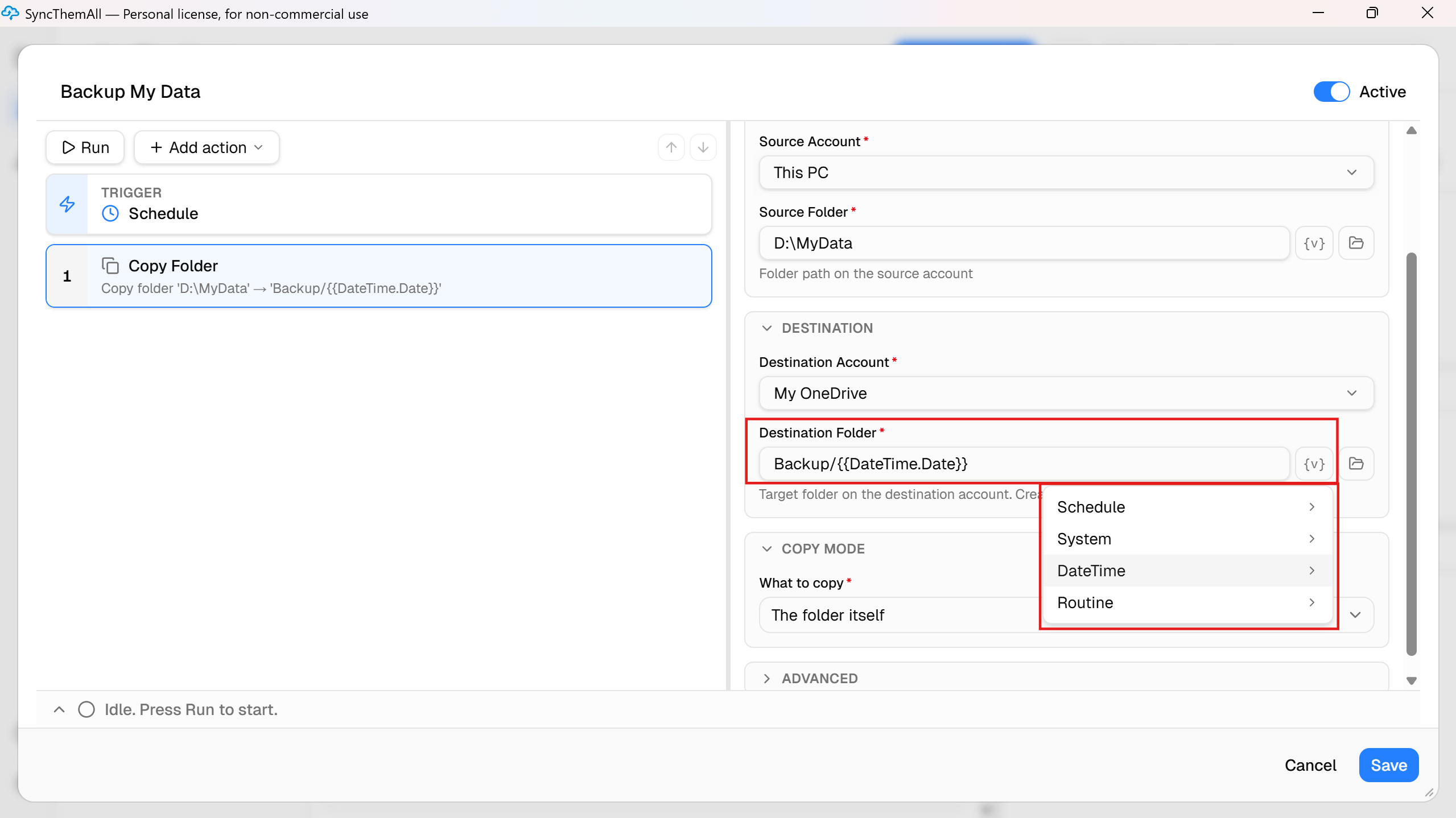
In SyncThemAll, the storage location is just a connected account. You're not trapped in Microsoft's ecosystem: today you push backups to Google Drive, tomorrow you switch to S3, FTP, or an external hard drive — you just change one parameter. You, not Windows-by-default, decide where your data lives.
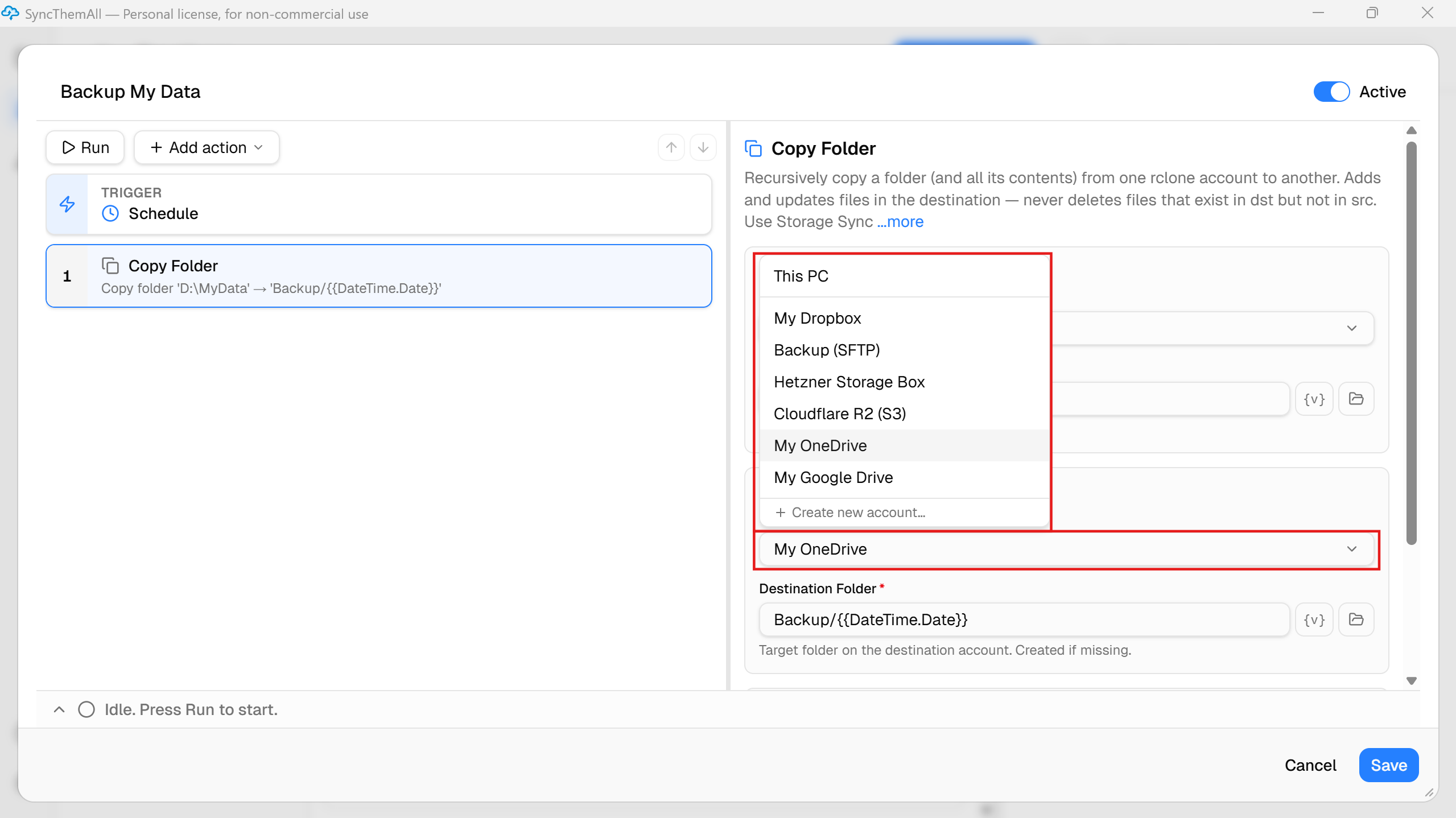
The 3-2-1 rule — the short version
A reliable backup means 3 copies, on 2 different media, with 1 copy off-site. OneDrive will do fine for the off-site copy, but it won't replace all three. The full scheme is: your working files + a local backup (like an external drive) + a cloud copy, ideally one that doesn't depend on Microsoft.
FAQ
Why did Windows move my files to OneDrive? That's the Known Folder Move feature. It often switches on unnoticed during the initial setup. You can turn it off in OneDrive settings, but you'll have to move the files back to your local folders manually.
How do I stop OneDrive from moving files? In OneDrive settings → "Back up your folders," toggle off the folders you want to keep local. In Word, uncheck the option to save to OneDrive by default.
If I turn off OneDrive "backup," will I lose my files? No, but they'll stay in the OneDrive cloud folder. You'll need to move them back to their old local place by hand.
Is OneDrive safe at all? As cloud storage — yes. As the single line of defense for your data — absolutely not.
And is Google Drive a backup? The story is the same, but it has its own technical quirks — we break them down in a separate article.
OneDrive is handy, and Windows knows how to convincingly call it "protection." But sync isn't a backup, and the peace of mind you get from a nice green checkmark in the interface is deceptive. Take back control: set up automatic copying of your important folders to a separate place, and your protection becomes real.
Take back control of your files → try SyncThemAll