Is Google Drive a Backup?
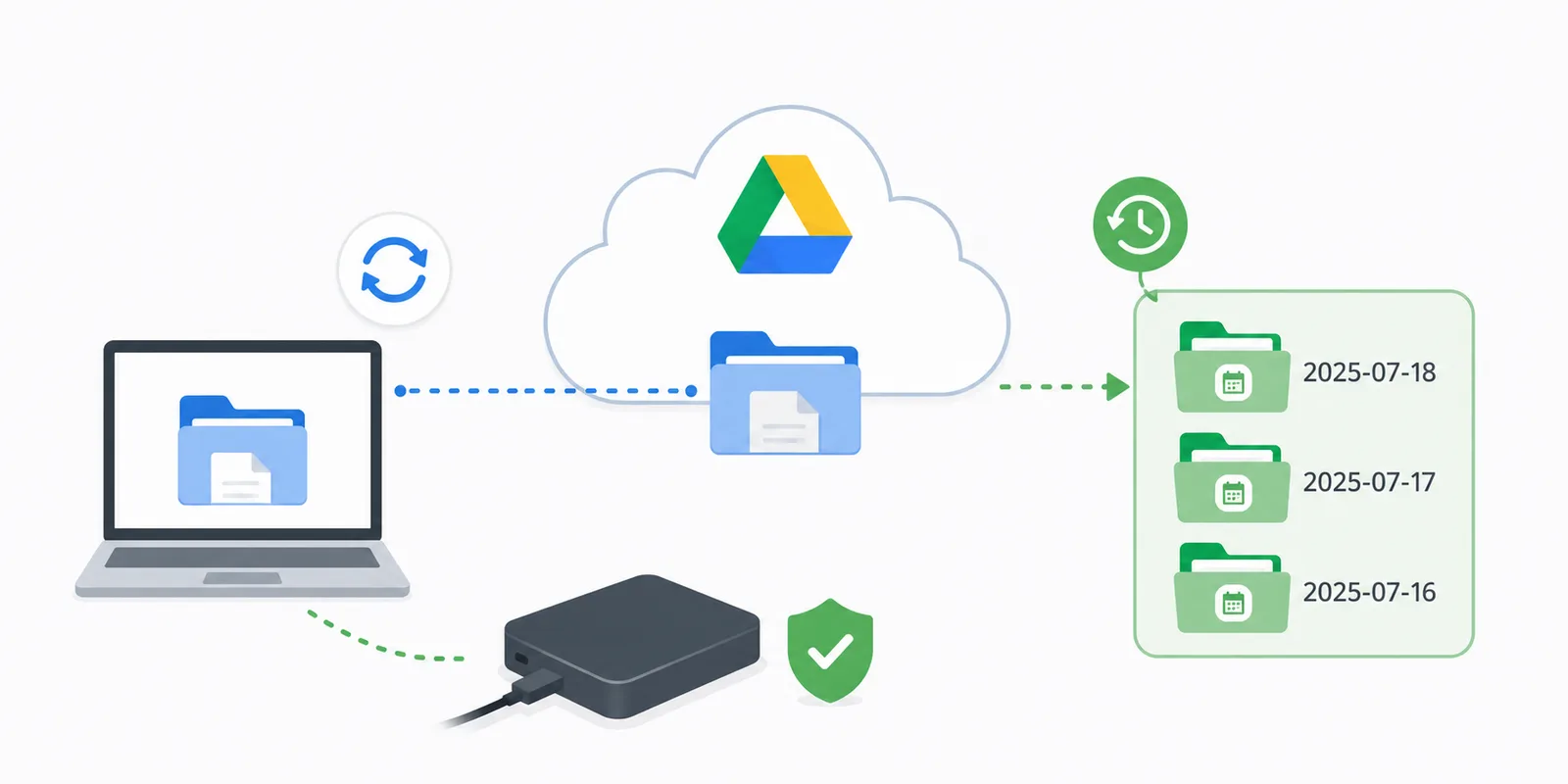
Short answer: no. Google Drive is a great place to keep your files, but its sync is not a backup. These are two very different things, and mixing them up is easy — and dangerous.
The good news is you don't need to abandon your favorite cloud or scramble for another service. You just need to use it correctly. Let's break down the difference, what the confusion costs you, and how to turn your Google Drive into genuine, bulletproof protection for your data.
What sync actually does
The official Google Drive desktop app works like a mirror. It ties your local folders to the cloud: change a file on your PC, and it changes on the server instantly. Delete it, and it's gone everywhere. That's wonderfully convenient for working across devices — your latest data is always at hand.
But that's exactly where the danger hides. A mirror only ever shows the current state of your files. It's not an archive, and it's definitely not a snapshot of "how things were yesterday."
The main drawback of a mirror
A mirror faithfully copies your mistakes to the cloud right alongside your work:
- Deleted a file by accident → it's deleted in Google Drive too. (Yes, there's a trash bin, but it empties for good after 30 days.)
- A file got corrupted or didn't save fully → the broken file is instantly synced to the cloud, replacing the healthy original.
- Hit by ransomware → the virus encrypts files on your computer, and the Google Drive client dutifully syncs that encrypted garbage, overwriting your good files.
Here, advanced users will say: "But Google Drive has version history!" It does. You can right-click a file and pull back last week's version. But picture ransomware wrecking three thousand files. Free Google accounts have no "roll everything back to Tuesday" button (unlike paid Microsoft 365). Restoring thousands of files one by one through the web interface is a quest you wouldn't wish on your worst enemy.
Sync vs. backup, in plain terms
- Sync is a mirror. Both sides are always identical. Any disaster on your drive is instantly duplicated to the cloud.
- Backup is a time capsule. An independent snapshot of your files at a specific moment, stored separately. Something went wrong on your working drive? You just grab the untouched archive.
Sync copies changes, including fatal ones. Backup preserves history. That difference saves nerves — and businesses.
How to use Google Drive the right way
The right approach is dead simple: don't point sync at your live working folders. Instead, copy the important data into a separate folder inside your Google Drive — and do it on a schedule.
That copy is isolated. Whatever happens to your working project on your D: drive — deleted, encrypted, half your code wiped by accident — the copy in the cloud stays intact, because it isn't tied to the original by a live mirror.
Nobody is going to do this by hand every day, so it makes sense to hand the chore over to software. A tool like SyncThemAll sets up in a couple of minutes: you tell it once which folders to grab, where to put them, and how often — then it quietly works in the background.
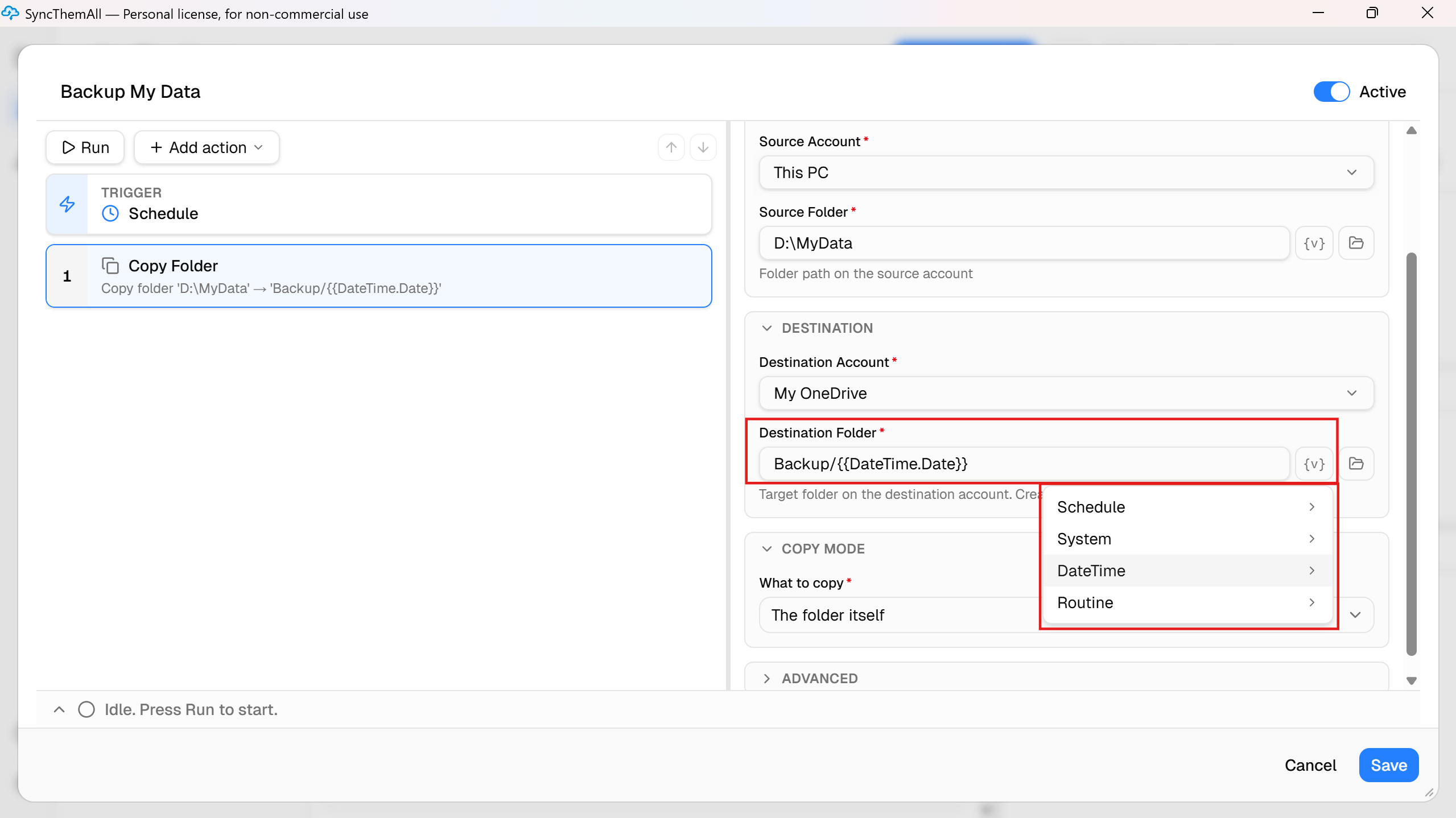
Want versions for different days for ironclad protection against any virus? Just drop each copy into a folder named with the current date. SyncThemAll has a {v} button for exactly this — in the destination field, it fills in the date for you (e.g., Backup/{{DateTime.Date}}/).
A fair warning: every dated folder is a full copy of your files. To keep them from eating up your entire cloud quota, you have two options. Either take these snapshots less often and delete old ones manually now and then, or set up copying into one permanent folder. In the latter case, SyncThemAll copies only the changed files, saving your bandwidth and storage space. And if you want smart automatic rotation ("keep the last 7 days, clear the rest"), that's a job for RoboTask — SyncThemAll's big brother, equipped with full logic and conditions.
By the way, SyncThemAll is a classic perpetual license, not yet another subscription. And for basic home use, the free version is more than enough.
Don't lock yourself to one provider
Today, Google might suit you perfectly. Tomorrow they raise prices, an algorithm locks your account by mistake, or you simply decide to move on. If your backup is hard-wired to Google's own app, moving becomes a massive headache.
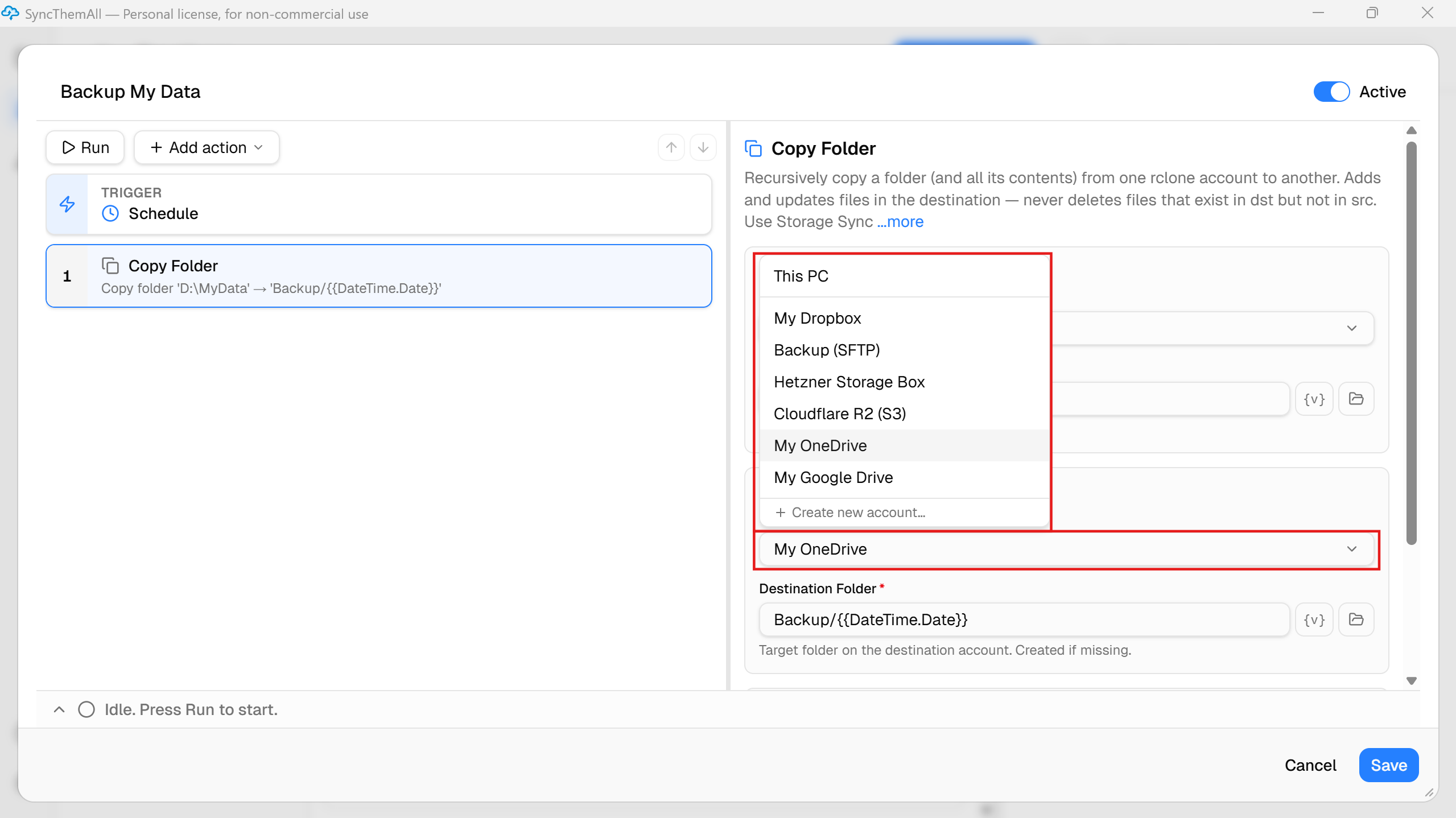
In SyncThemAll, the storage location is just a connected account. You can add Google Drive, Dropbox, OneDrive, S3-compatible storage, or plain FTP. To change where your backup lands, you just change a single option in a dropdown menu. Your archive belongs to you, not to a tech giant's ecosystem.
The 3-2-1 rule — the gold standard
The classic rule of reliable data storage: 3 copies, on 2 different media, with 1 copy off-site. Google Drive plays the "off-site copy" role nicely, but it shouldn't be the only one. Full protection means your working files + a local backup (like an external drive on your desk) + an archival copy in the cloud.
Where sync helps, and where it fails
Let's be objective: Google's sync is a great tool. If your hard drive dies or your laptop gets stolen, you just buy a new one, sign in, and your files are back. Against hardware loss, it protects you 100%.
But sync is useless the moment the threat is to the files themselves. An accidental deletion, a virus, or someone getting access to your computer will wipe everything — locally and in the cloud alike. The formula is simple: sync protects against losing your device, not against losing your data. So the right answer is convenient sync plus a real, isolated backup.
FAQ
I deleted a file in Google Drive — can I get it back? Yes, from the trash. But only for 30 days, then it's gone for good. A real backup keeps copies as long as you need and doesn't quietly delete them behind your back.
Is Google Drive safe? As cloud storage from a massive corporation — sure. As the single line of defense for your valuable data — definitely not.
Is Google Drive alone enough? As one link in your backup chain — yes. As the only home for important files — no.
Does OneDrive work the same way? The story is similar, but Microsoft has its own traps baked deep into Windows itself. We break them down in a separate article.
Google Drive is a great, reliable tool. Just don't mistake a convenient mirror for a real safe. Set up automatic copying of your important folders into a separate, dated directory — and you get ultimate data protection without leaving the service you're used to.
Turn Google Drive into a real backup → try SyncThemAll